
Verify your payment account (Germany)
Why do I need to verify my payment account?
You need to verify your payment account to confirm that you are the owner of any deposit and withdrawal methods you use.
This is required by licensing obligations. You only need to verify each new payment method once.
Documents sent are kept safe and secure and are not used for any other purpose.
When do I need to verify my payment account?
You need to verify your payment account when you use a new and unverified payment method:
- When you make your first deposit with a new payment method
- When you request a withdrawal to a new payment account
How do I verify my payment account?
You can verify your payment account by submitting proof of ownership when prompted.
- Log in to your account.
- Go to 'Cashier'.
- Request a deposit or withdrawal using your unverified payment method.
- Follow on-screen instructions.
- Upload the requested documents.
You can also upload documents through the document upload page.
- Open the document upload page.
- Enter the email address used to register your account.
- Submit the form.
What documents do I need to verify my payment account?
The required documents depend on your payment method.
Provide proof of ownership based on the method you used.
Apple Pay
Provide a screenshot or photo showing the card used with Apple Pay.
- Send a clear desktop or mobile screenshot showing the card used to deposit.
- Or send a photo of the front of the card used with Apple Pay.
For virtual cards:
- Show only the first 6 and last 4 digits (e.g. 444444******4444).
- Show your name if available.
- Show the issue date.
- Show the expiration date.
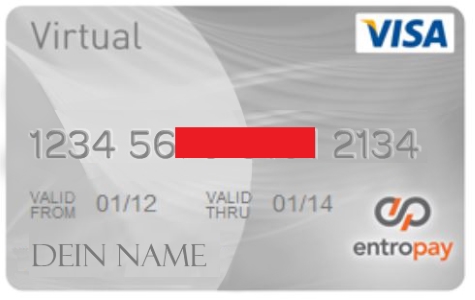
Cards
Provide a valid card statement or card copy.
Option 1: Card statement
- Send a card statement no older than three months.
- Show the cardholder's name.
- Show expiry date.
- Show only the first 6 and last 4 digits (e.g. 444444******4444).
- Do not include transaction history.
Option 2: Card copy
- Send a scanned copy of the card.
- Show only the first 6 and last 4 digits.
For virtual cards:
- Send a bank statement for the card.
- Include the deposit made with PokerStars in the transaction history.
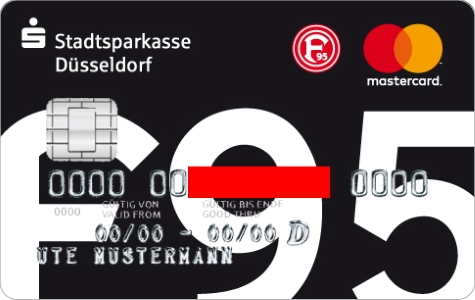
Direct bank transfer or wire transfer
Provide a bank account screenshot or an official document.
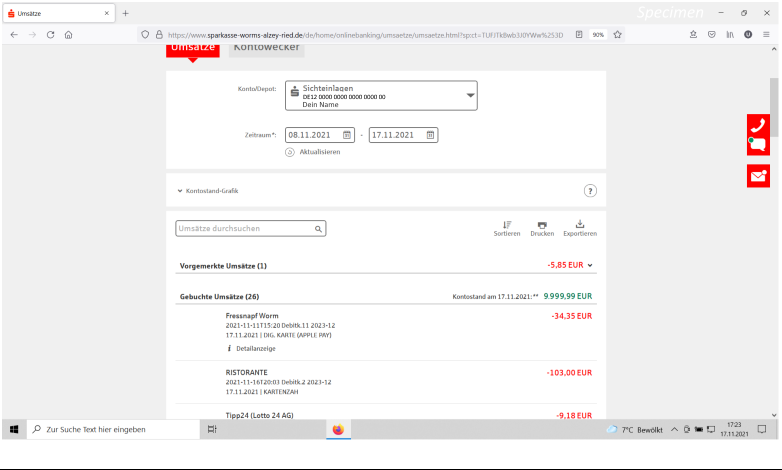
Option 1: Screenshot
- Send a screenshot of the online bank account summary page.
- Show full name.
- Show account details.
- Show the URL.
- Do not include transaction history.
- Do not include the account balance.
- Ensure the login URL link is visible.
For printed documents:
- Show the date.
- Show the bank website URL.
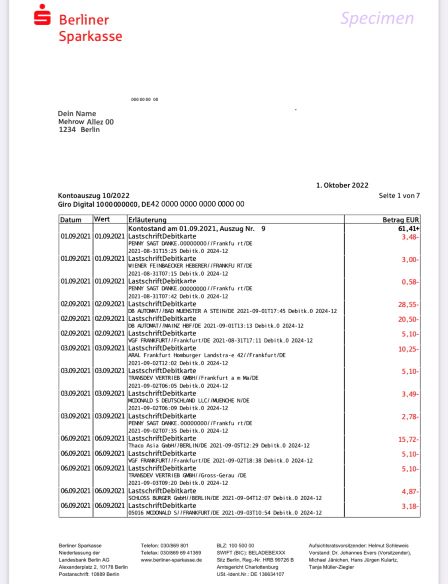
Option 2: Bank statement or IBAN proof
- Send a bank statement or proof of the IBAN in a single document.
- Issue date no older than three months.
- Full IBAN matching the PokerStars account.
- BIC or SWIFT code.
- Full name of the account holder.
- Full address matching the PokerStars account.
- Bank identification or logo.
Restriction:
- Payments from third parties are not accepted.
Sample bank statement with required information clearly visible
Sample bank statement with required information clearly visible for home banking
MuchBetter
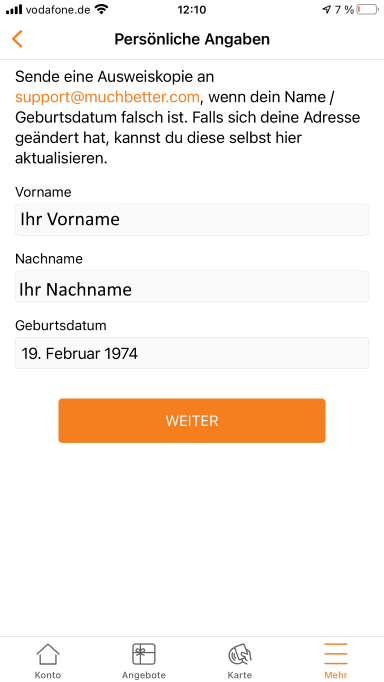
Provide a screenshot of the 'Personal Details' section.
- Go to 'Profile' → 'Personal Details'.
- Take a screenshot showing name.
- Show date of birth.
- Show address.
- Show email.
- Show phone number.
If using a MuchBetter Mastercard:
- Send a copy of the Mastercard.
- Show only the first 6 and last 4 digits.
Example MuchBetter ‘Personal Details’ screen showing name and date of birth
PayPal
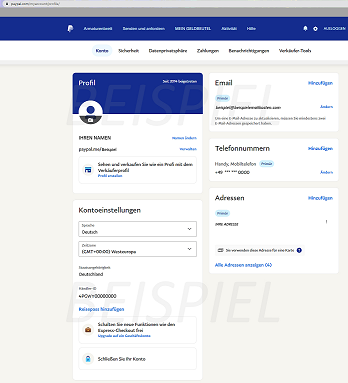
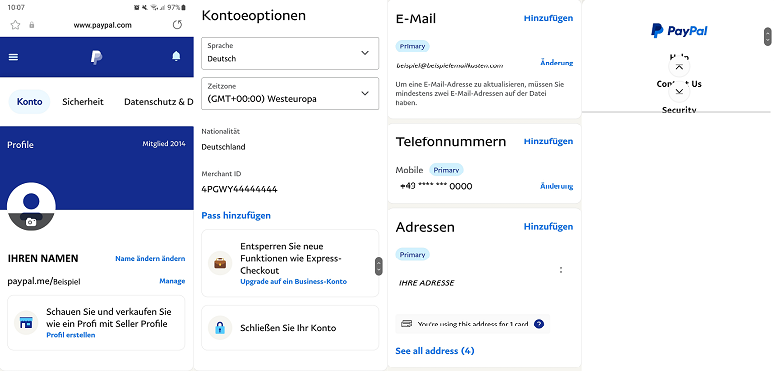
Provide a screenshot of the 'Account' screen with required details.
- Log in to PayPal.
- Select 'Settings' (cogwheel next to 'Logout').
- Open 'Account'.
- Take a screenshot.
The screenshot must show:
- Name
- Address
- Merchant ID if available
- Visible page URL
Example PayPal Account page (desktop) showing required details (name, email, and address)
Example PayPal Account page (mobile) showing required details (name, email, and address)
NETELLER
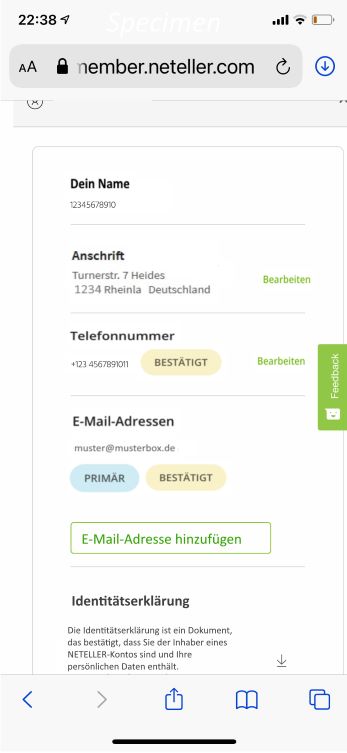
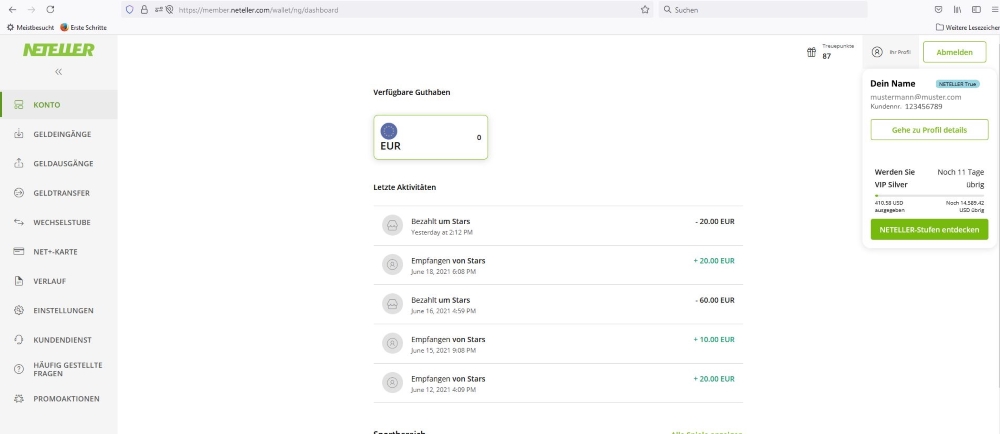
Provide a screenshot of the account page with required details.
- Log in to NETELLER.
- Open 'Account Overview' or 'Settings'.
- Take a screenshot.
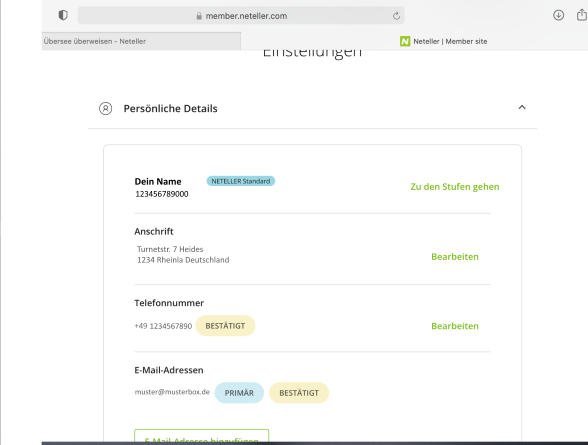
The screenshot must show:
- Name
- Registered email
- Visible URL
Example NETELLER Account page (mobile) showing required details (name, email, and address)
Example NETELLER Setting page (desktop) showing required details: name, email, and address
Example NETELLER Account Overview page (desktop) showing name and account details
Skrill
Provide a screenshot of the 'Settings - Personal Details' page.
- Log in to Skrill.
- Go to 'Settings' → 'Personal Details'.
- Take a screenshot of the full page.
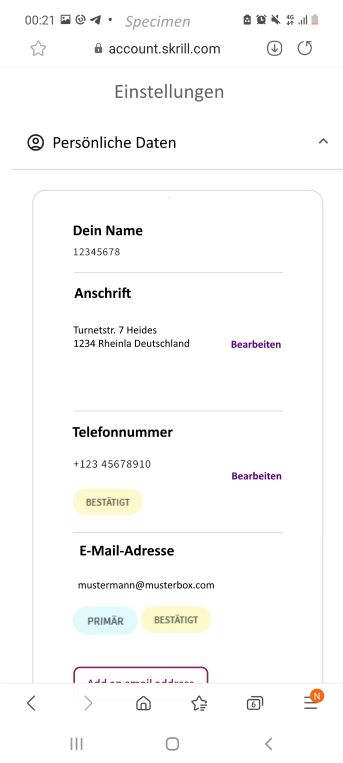
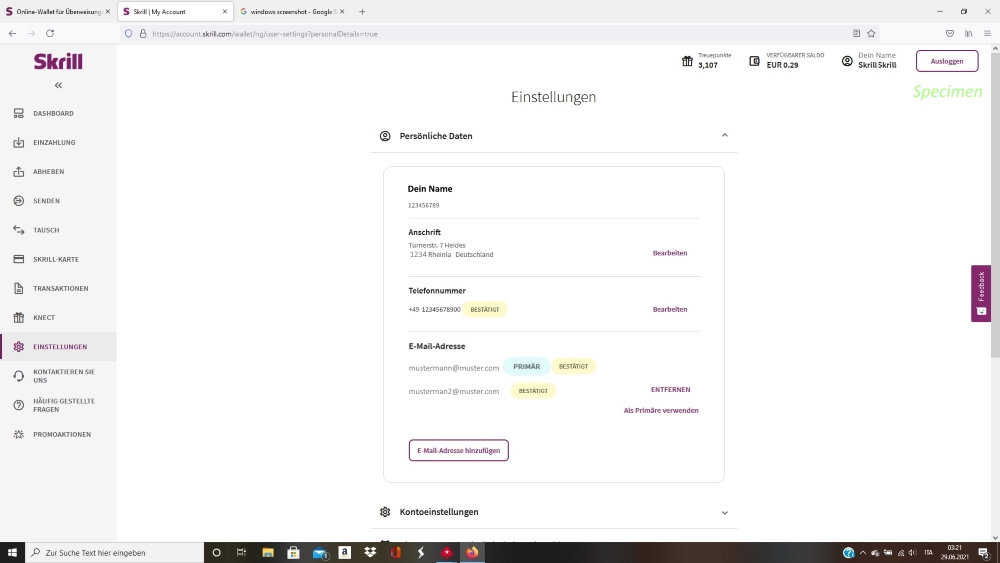
The screenshot must show:
- Name
- Address
- Phone number
- Visible page URL
Example Skrill Personal Details screen (mobile) showing required details (name, address, and phone number)
Example Skrill Personal Details screen (desktop) showing required details (name, address, and phone number)
My PaysafeCard
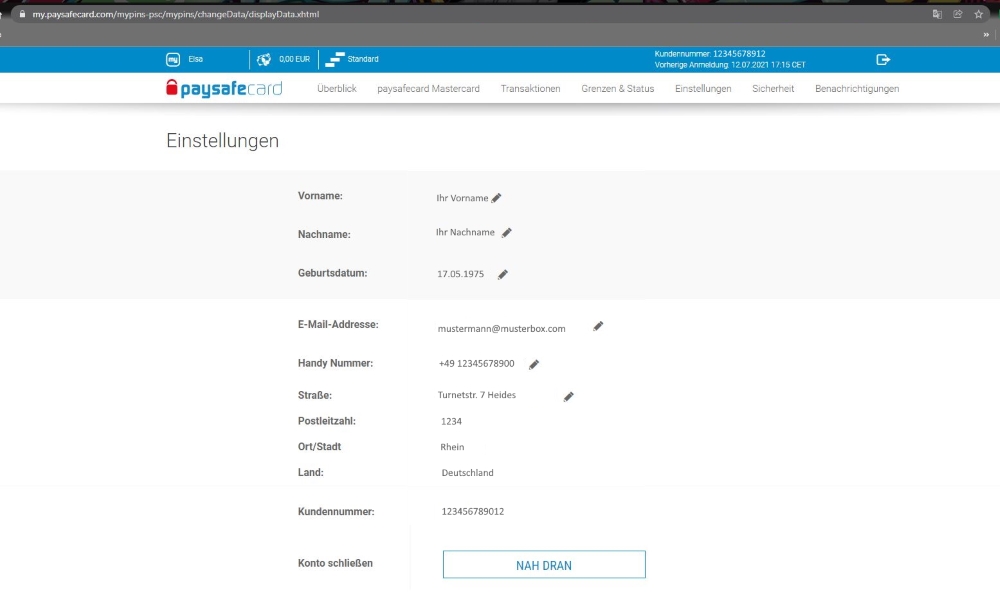
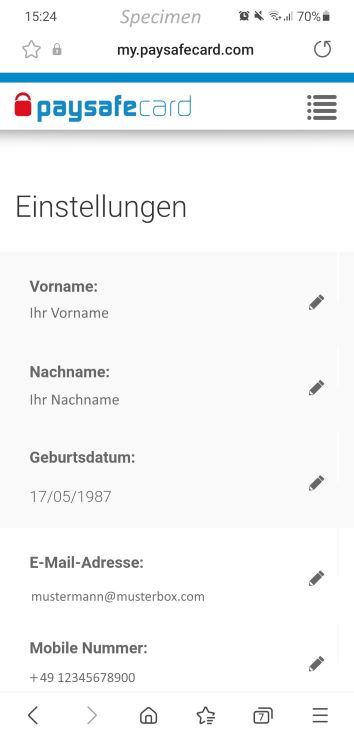
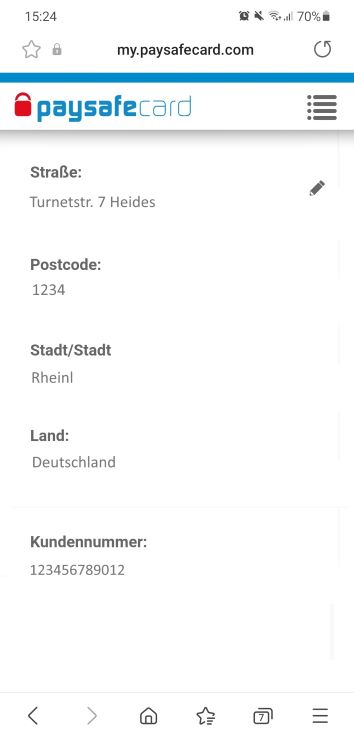
Provide a screenshot of the 'Settings' page.
- Log in to 'My PaysafeCard'.
- Open 'Settings'.
- Take a screenshot of the full page.
The screenshot must show:
- Visible URL
Example Paysafe 'Personal Details' screen (desktop) showing required details (name, address, and phone number)
Example Paysafe 'Settings' screens (mobile) showing required details (name, address, and phone number)
Send these two screenshots together.
You can upload your document through the document upload page.
Did you find this article useful?
Related Articles
- Closing your account
- e-wallets: Authenticating your transactions
- Cannot open a Chest
- How do I migrate my PokerStars account to PokerStars.DE?
- How do direct bank transfer withdrawals work?
- Verify your account details (Germany)
- Take a break from playing
- Cross-Operator Deposit Limits (Germany)
- Fix connection issues using DNS
- Using your account after GDPR data deletion