
Validate your account (Germany)
Overview
What is the account validation process for Germany?
PokerStars uses an account validation process to comply with German gaming regulations introduced on May 17.
Why do I need to validate my account?
Account validation ensures:
- Minors and vulnerable players cannot access services
- Each player has only one account
- Fraud and duplicate accounts are reduced
- A real person created the account
- PokerStars can contact players when needed
Do I need to verify my account again?
Yes. Existing players must verify their accounts again.
Account validation steps
How do I validate my account?
You must complete the steps below to validate your account:
- Validate a German mobile phone number.
- Complete the Real Money form.
- Wait for electronic checks.
- Upload documents and complete the Liveness check within three days.
Step 1: Validate your mobile phone number
Do I need a German mobile phone number?
Yes. You must use a German mobile number with the country code ‘+49’.
Without one, you cannot use the services.
What should I check before requesting a validation code?
- Ensure your number is not on a “do not dial” list
- Contact your provider if needed
- Make sure your device and connection are active
How does the mobile phone validation process work?
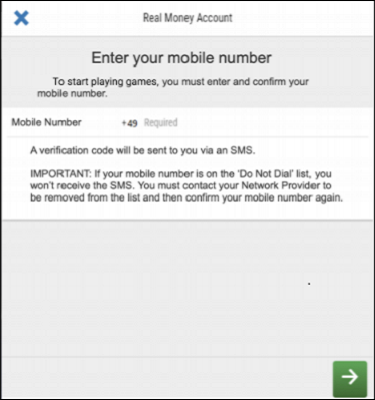
You must enter your mobile phone number at login to start validation.
- Enter the mobile phone number at login.
Mobile number entry screen used to verify your phone number during account validation
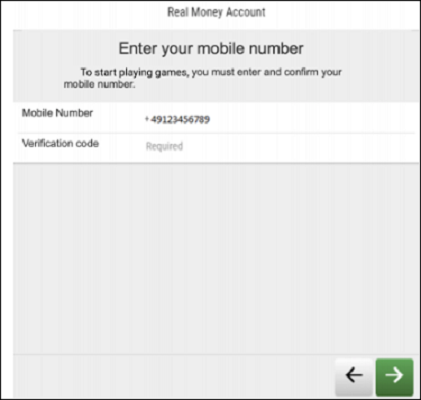
2. Wait for the validation code by SMS after the number is confirmed.
3. Enter the SMS validation code on the next screen.
Mobile number screen for verification code during account validation
Step 2: Complete the Real Money form
How do I complete the Real Money form?
- Fill in all fields
- Ensure details match your ID
- Set the Cross-Operator Deposit Limit if this has not been set.
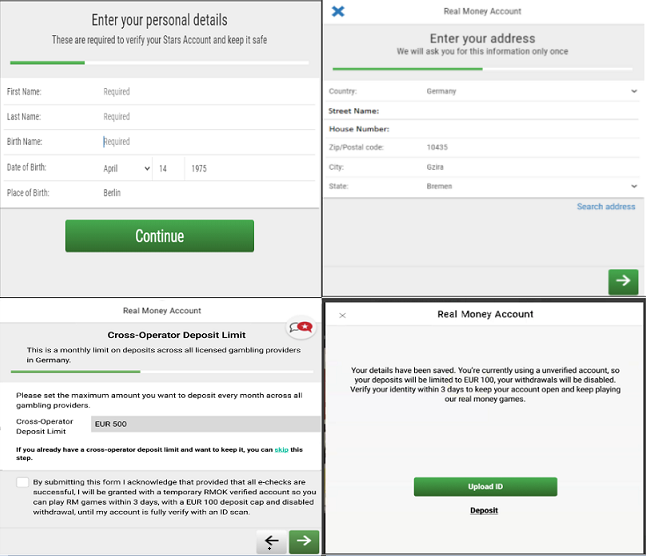
What field limits apply to the Real Money form?
- Most fields: up to 85 characters
- Street name: up to 150 characters
- House number/postal code: up to 20 characters
- House number cannot be 0, 00, or 000
What should I check before moving to the next step?
Make sure all information is accurate to avoid issues with SCHUFA.
For help, contact SCHUFA at schufa.de/kontakt/.
Step 3: Wait for our electronic checks
What electronic checks are performed?
- SCHUFA check.
- OASIS check.
- LUGAS check.
What is the SCHUFA check?
Verifies identity.
If unsuccessful, try again or contact SCHUFA.
For help, visit:
What is the OASIS check?
A national exclusion register that prevents restricted players from accessing gambling services.
What is the LUGAS check?
Confirms identity and ensures deposit limits are set correctly.
More information is available in the Deposit Limit article:

Did you find this article useful?
Related Articles
- Closing your account
- e-wallets: Authenticating your transactions
- Playing with friends or family
- Verify your payment account (Germany)
- How do I migrate my PokerStars account to PokerStars.DE?
- Sit & Go tournaments
- Verify your account details (Germany)
- Take breaks and block access to games
- Tournament Money (T-Money)
- Take a break from playing